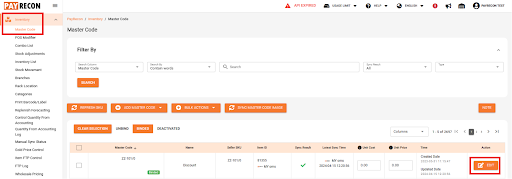
On the Navigation Bar on the left, scroll until you find ‘Inventory’. Under ‘Inventory’, click ‘Master Code’.
On the list of item below, select the item that you would like to set the tax for, and click ‘Edit’ button on the item row (In some case, you might need to scroll to the left to locate the button)
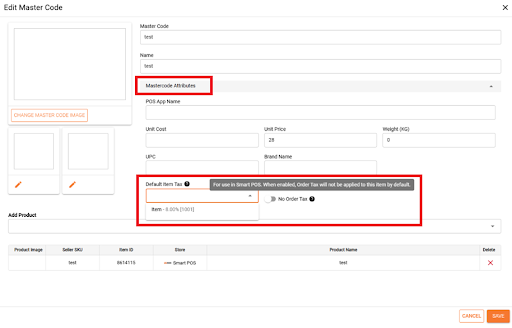
In the Edit Master Code pop-up window, expand Mastercode Attributes, Select and choose an Item Tax as default for this item. You may also Enable/Disable the “No Order Tax” toggle button (optional)
NOTE: If an Item Tax is selected → the item will always use the selected item tax during checkout.
Pre-condition: A Default Order Tax has already been configured in the Tax Setting.
Enabled No Order Tax -> The item will NOT have the default order tax applied. Only the selected item tax (if any) will be used.
Disabled No Order Tax -> The item will HAVE the default order tax applied together with its item tax(if applicable)