How to Assign a Cashier for an Order Using Smart POS App
How to Assign a Cashier for an Order Using Smart POS App
Step 1:
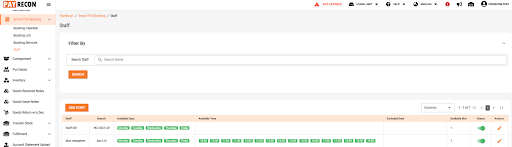
Pre-Condition : A staff account must have been created in the Staff page with a valid 4-digit PIN number
Step 2:
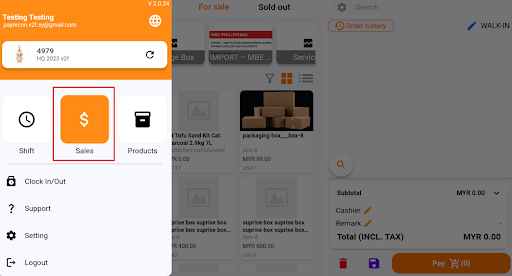
Login to Smart POS App. Click on three line icon in the top left of the page. Click on the ‘Sales’ icon
Step 3:
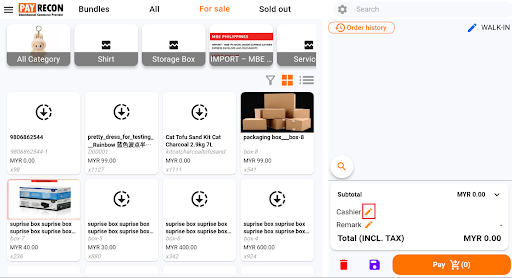
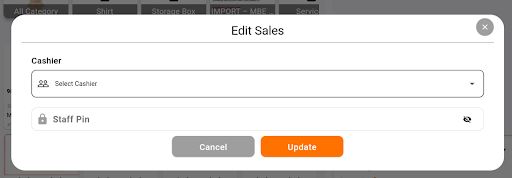
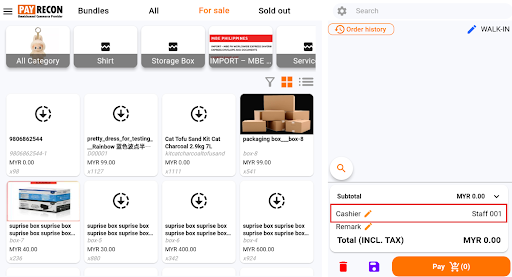
In the cart section on the bottom right part. Tap the orange pencil icon beside the cashier row. A cashier pop-up window will appear, in the pop-up window select the staff and enter the staff’s 4 digit PIN number for verification
Step 4:
Once the cashier verification is successful, the selected staff name will be displayed in the cart.
Now all the subsequent sales transaction will be recorded under the assigned cashier